In the healthcare industry, fax is here to stay, as ubiquitous as pen and paper. Millions of people around the country depend on faxes to bill an insurer, to process prior authorization, obtain consent, receive referrals and more.
And then the "fun" begins:
- A human has to look at that fax and decide where it goes.
- Someone else has to read that fax and type the information into a document or confirm the output of OCR.
- They forward that structured information somewhere else, maybe an EHR or a spreadsheet or another email.
Fax is not the hard part; it's everything that happens afterward.
Thousands of healthcare businesses around the country depend on Documo for sending and receiving faxes, and also for obtaining signatures or sending faxes directly from their EHR or CRM.
Gravity Rail is where the document meets the people who have to act on it — document workflows meeting human workflows.
What you can do with an inbound fax
Once a Documo fax lands in Gravity Rail, you can:
- File it in a folder your team already uses, as a private PDF.
- Read it with AI, extracting just the information you need.
- Route it to the right person or team: an email, a text, a notification, or the next step in a structured process you already run.
- Keep a full audit trail of what arrived and whether it was handled.
Your fax numbers stay in Documo. Gravity Rail is the place the document goes to work.
For now, Gravity Rail accepts inbound Documo faxes but does not send faxes. To sign up for beta outbound fax support, contact us.
What you need
- A Gravity Rail workspace. Need one? Get started here.
- A Documo account and an API key for that account. Get your 14-day free trial.
Create the API key in Documo under Settings → API. You will paste it into Gravity Rail in a minute.
How to contact Documo
Email sales@documo.com and let them know you heard about them here. Their team will get you from first demo to full solution quickly.
If you are leaving another fax vendor, tell them — Documo can help you keep your number.
How to connect Documo
1. Turn on Documo Fax
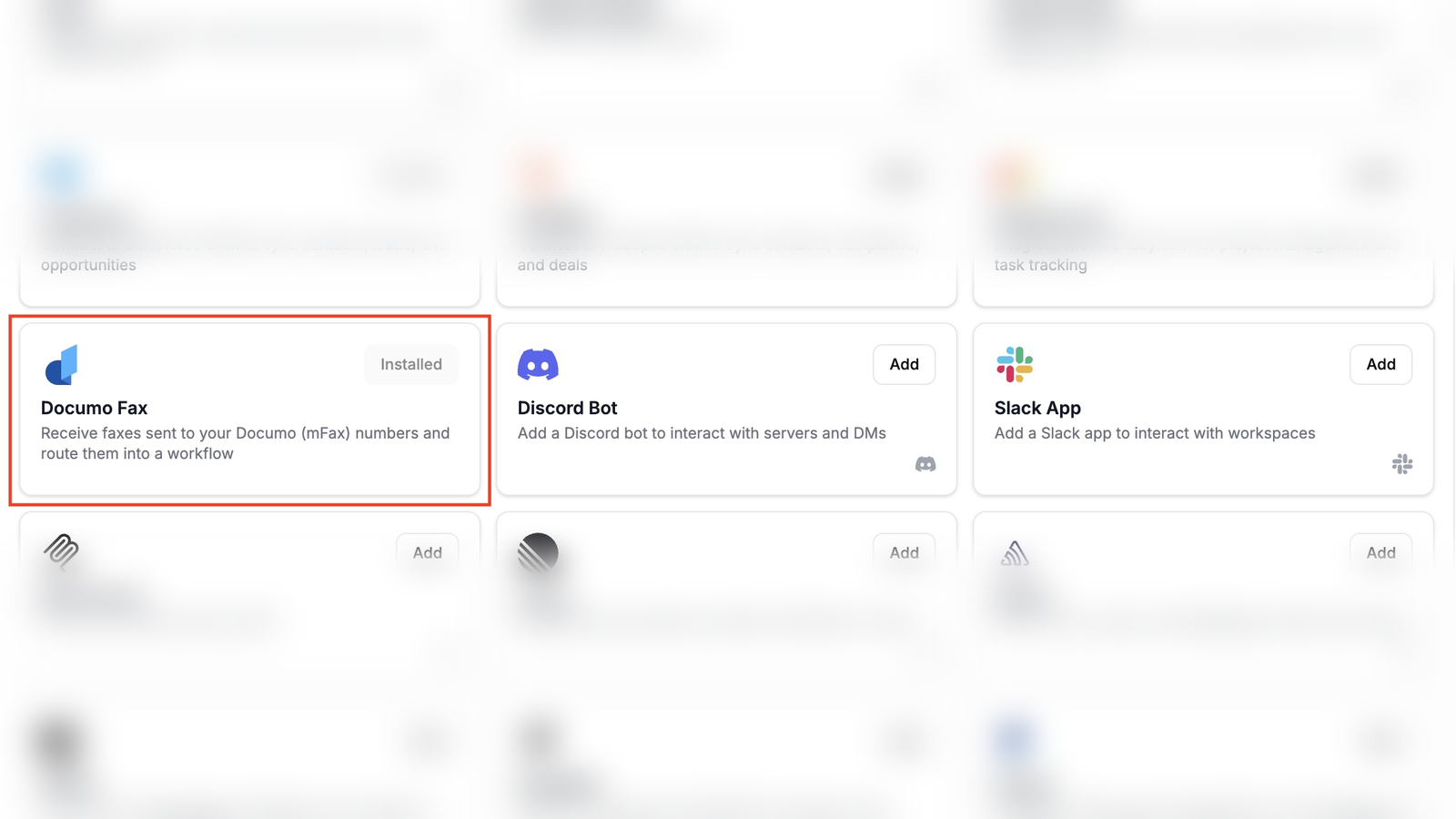
In Gravity Rail, go to App Connections, open the directory, and turn on Documo Fax.
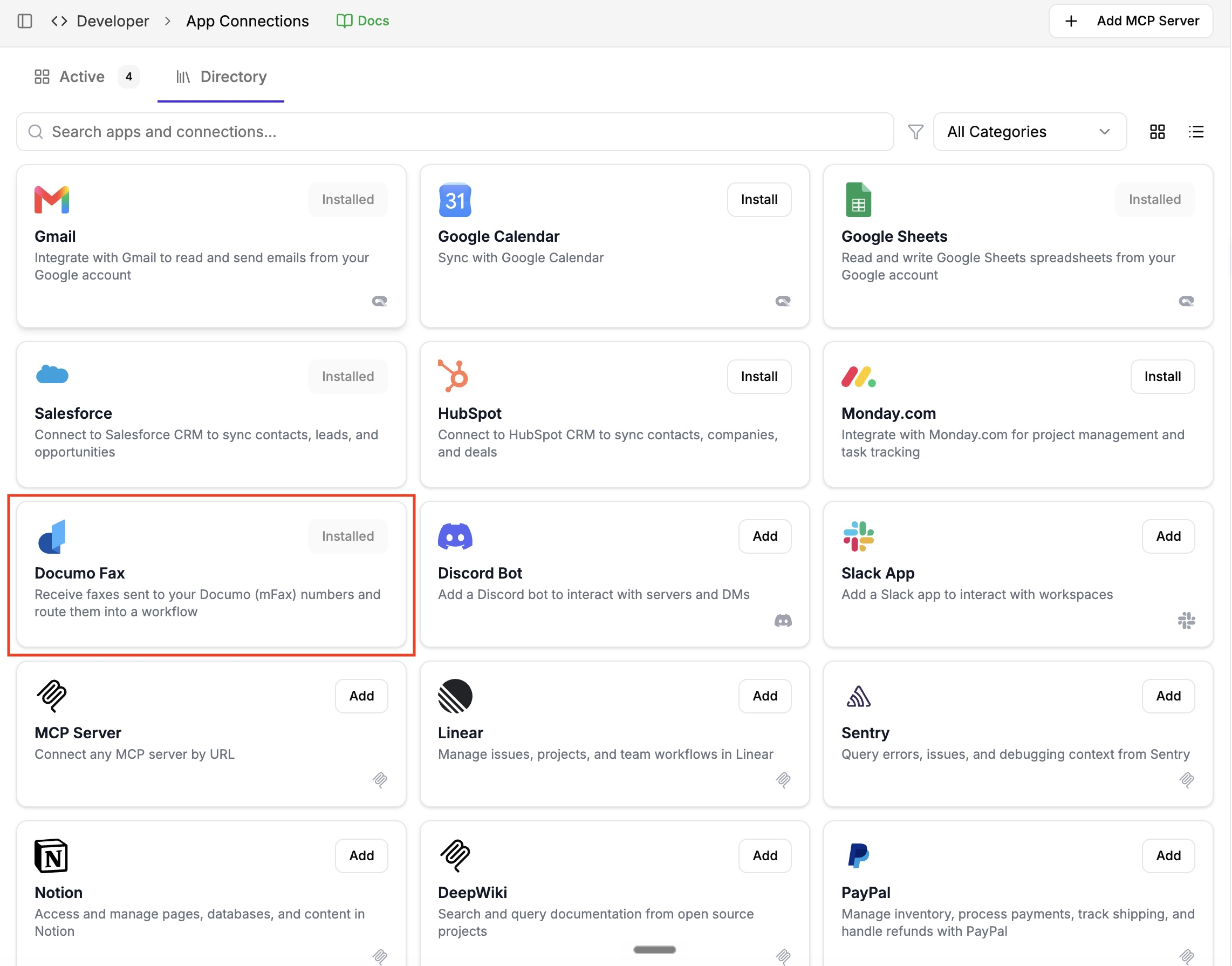
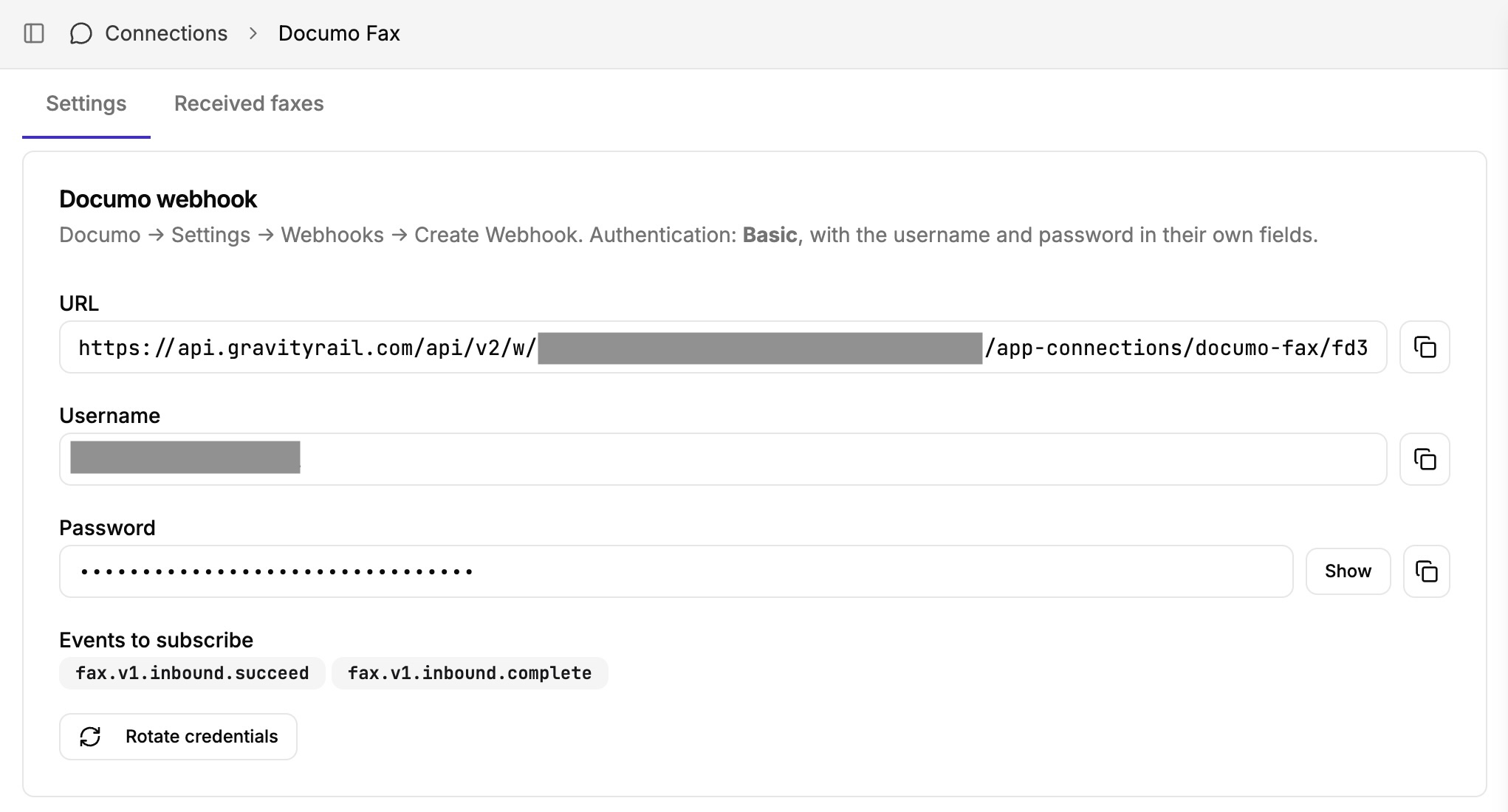
Gravity Rail gives you a webhook URL, a username, and a password. You will paste those into Documo next.
2. Point Documo at Gravity Rail
In Documo, go to Settings → Webhooks → Create Webhook.
- Paste the URL.
- Set authentication to Basic.
- Paste the username and password into their own fields — not joined with a colon.
- Subscribe to inbound success events.
fax.v1.inbound.succeedandfax.v1.inbound.completeare enough.
3. Choose who handles the fax, and where it files
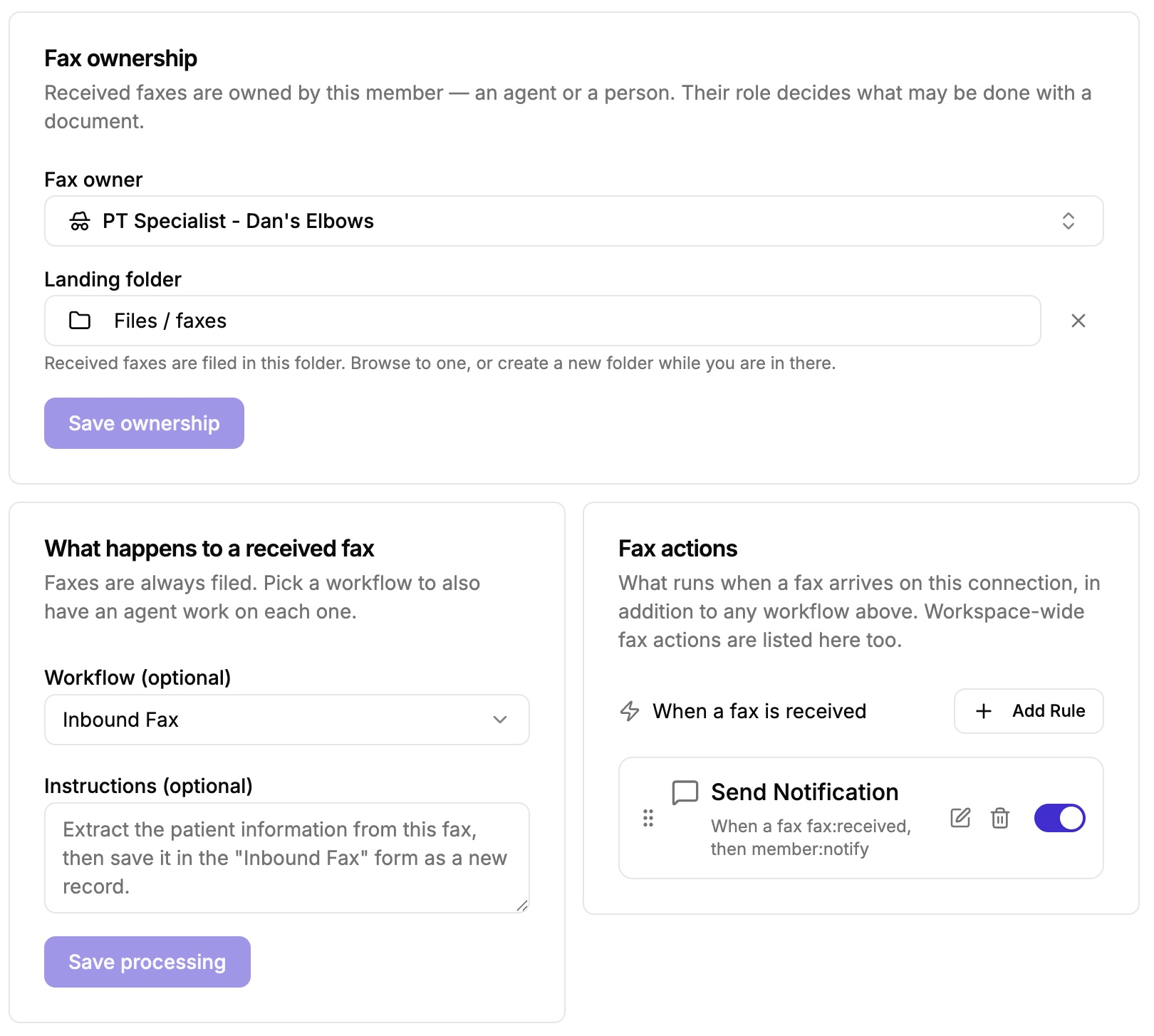
Pick a fax owner — the person or AI assistant the document belongs to.
Pick a folder for inbound faxes. You can create one from the same screen.
4. Decide what happens after it lands
Every fax is saved. On top of that, you can turn on AI processing so Gravity Rail reads the page and routes it: the right person, the right folder, an email or SMS, or the next step in a process you already run.
If you only want the file for now, leave processing off. That is a complete setup.
5. Save your Documo API key
On the same page, open Documo account, paste the API key, save, and test the connection.
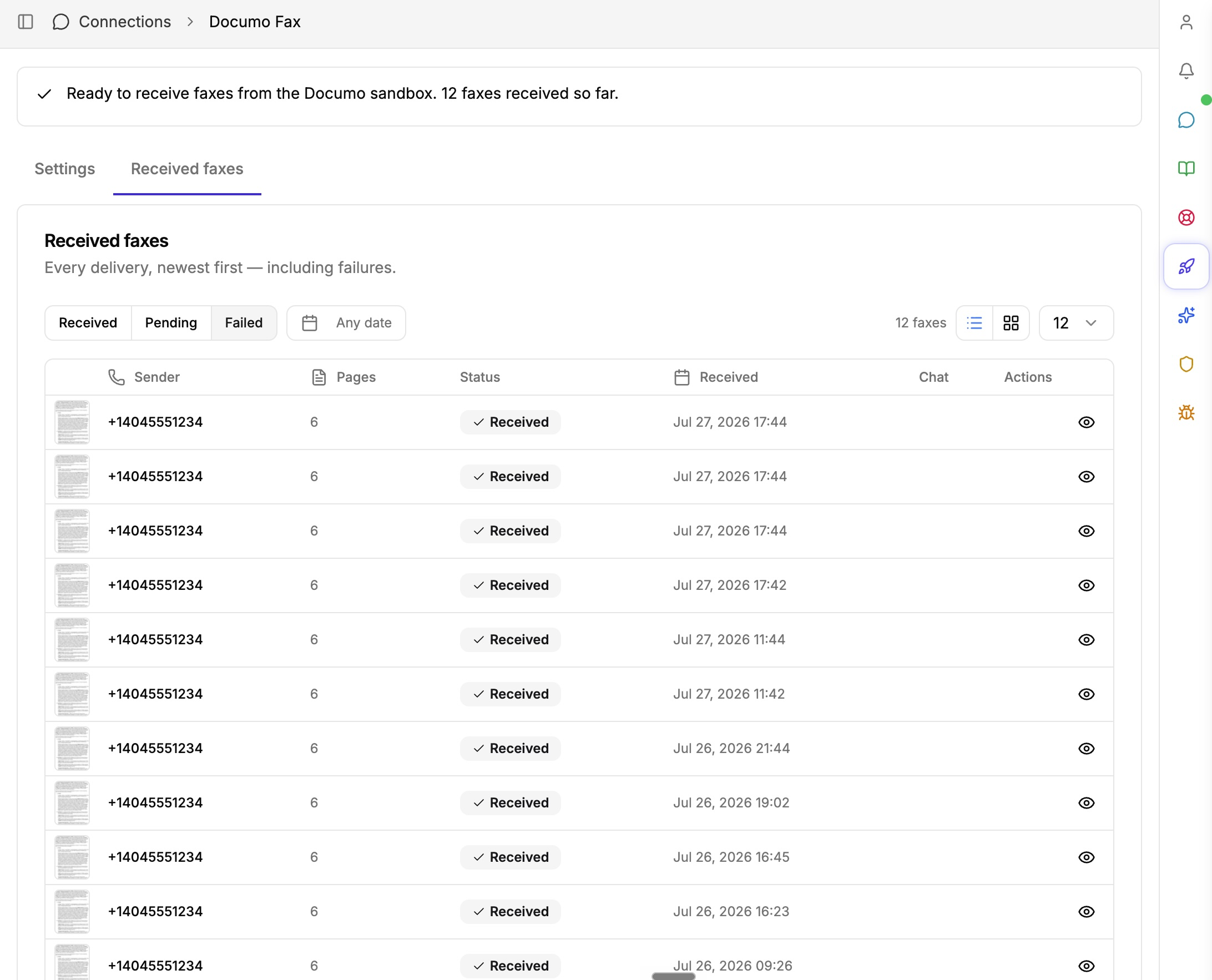
When the key, the owner, and the folder are in place, you are ready. Send a test fax to your Documo number and open Received faxes to confirm it landed.
Get started
Connect Documo in your workspace and walk the steps above. If you are still choosing a fax vendor, email Sales@documo.com and say you are from Gravity Rail, or start a 14-day free trial.
If you handle protected health information, confirm you have a BAA with Documo for your account and a signed BAA with Gravity Rail for your workspace. Do not send PHI to Gravity Rail until Gravity Rail has confirmed the intended organization, workspace, and service configuration.