
Scheduling meetings is important and time-consuming, and a distraction from work that only you can do. In healthcare, this is referred to as working "below your license." As a college student, I call it a headache.
Today we're going to show you how to offload that work to your first agent. By the end of this tutorial, you'll have an AI scheduling agent that communicates with members via email and finds a time that works for both the member and the host, then books it on your Google Calendar. Gravity Rail can integrate with any calendar; this tutorial focuses specifically on Google Calendar.
This guide is modeled on a working workflow - Meeting Booking - run by an agent named Grace, who books 30-minute meetings with Mason Brown.
A note on the data in this post: every name, email address, and booking example shown here (the agent "Grace", the host "Mason Brown", and the sample messages and screenshots) is the post author's own demonstration data. This is a scheduling tutorial: no patient information (PHI) appears anywhere in this post.
What You're Building
The four building blocks:
| Piece | What it is | In our example |
|---|---|---|
| Agent | The persona that talks to the member - its prompt, chat model, and voice. | Grace |
| Inbox | An email address the workflow can send and receive on. | Booking Agent |
| Workflow | The overall "job," made of one or more tasks plus its abilities/tools. | Meeting Booking |
| Task | A single step inside a workflow, with a prompt that tells the agent what to do. | Book Meeting |
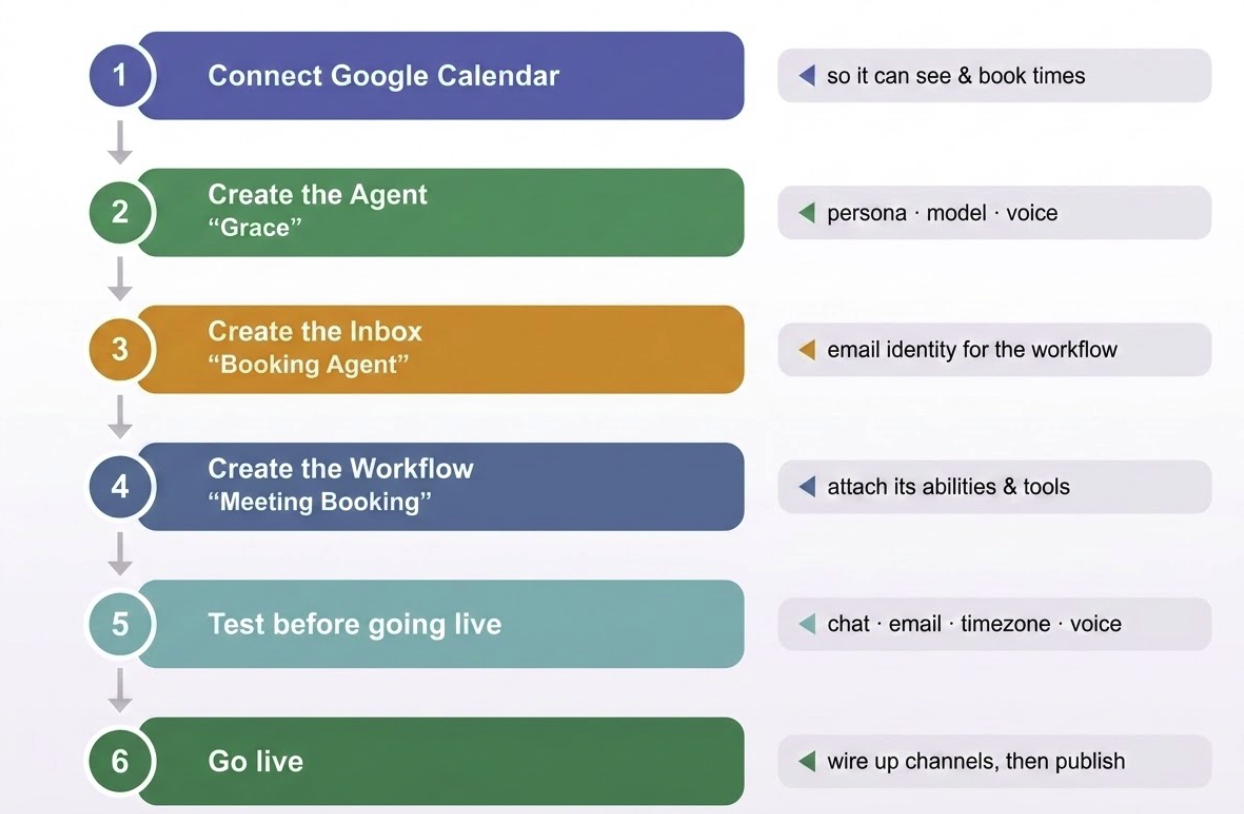
All names and details shown here are the post author's own demonstration data, not patient information (no PHI).
Why this order matters: build the dependencies first (Calendar connection → Agent → Inbox), then assemble them in the Workflow last. The agent's booking tools only appear after Google Calendar is connected, so connect it early.
Prerequisites
- A Gravity Rail workspace where you have Manager access.
- A Google Calendar you want meetings booked on.
Step 1 - Connect Google Calendar
The agent can't offer or book times until it can see a calendar. Making a calendar available to the agent takes two steps:
- If it isn't already connected, go to Connections → Manage → Directory and connect Google Calendar. This creates a local replica for your agent to schedule time on.
- Once connected, go to Knowledge → Calendars, click Sync at the top of the screen, then click Connect Google Calendar.
Checkpoint: once connected, the Calendar Booking ability can give an agent tools to check availability, find slots, book appointments, and cancel appointments. You'll configure that ability in Step 4.
Step 2 - Create the Agent
The agent is the persona members interact with. Go to Members → Agents.
Name the agent. In our example: Grace.
Write the agent prompt - a short, identity-level instruction (the detailed step-by-step lives in the task later, not here):
Show agent promptHide prompt
You are Grace, a scheduling agent that books 30-minute
meetings with Mason Brown. You talk to members via email
and in chat. You are friendly, welcoming, and
empathetic, yet also persistent.
Select the chat model. Choose a fast model - booking is a data-collection task, not a deep reasoning task. Speed matters more than raw power here, and members prefer quick replies. Our example uses GPT-5.6 Luna.
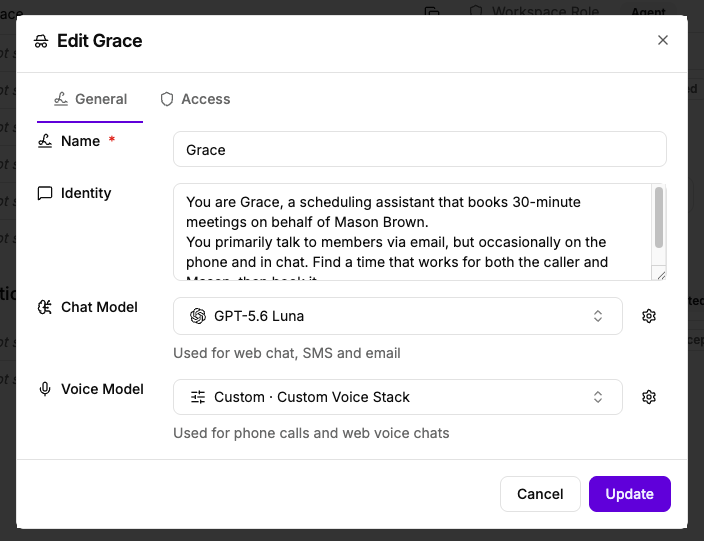
"Mason Brown" here is the post author's own name (the meeting host), not patient information (no PHI).
Recommendation: keep the agent prompt short and about who it is. Put the how-to-do-the-job instructions in the task prompt (Step 5). This separation lets you reuse the same agent across multiple workflows.
Step 3 - Create the Inbox
Give the workflow an email identity so it can send emails to members (and receive replies). Go to Connections → Inboxes.
- Create an inbox named Booking Agent. This generates an address like
booking-agent_<your-workspace>@gravityrail.com. - Turn on AI Enabled and, if you want the workflow to answer inbound emails automatically, turn on Auto-Reply.
- Set the inbox's default workflow to your Meeting Booking workflow (create it in the next step, then come back and set this).
Step 4 - Create the Workflow and Attach Its Abilities
Now assemble the pieces.
- Name the workflow: Meeting Booking.
- Description: Single-task workflow where Grace books meetings on behalf of Mason Brown.
- Prompt: You can leave this blank or add a short one. Workflow prompts are most useful in multi-step workflows.
- Agent: In the workflow identity settings, choose Copy from… → Agent, then select Grace.
- Default inbox: set to Booking Agent in the Comms tab.
We now have an agent that can control a conversation, but it doesn't know anything about your calendar or how to book meetings.
Attach the abilities that let the agent book meetings. In the multi-step view, find your task, click the + icon next to Abilities, and add:
| Ability | Setting | Why |
|---|---|---|
| Calendar Booking | Select the connected calendar and create or select an event type for your desired meeting length (e.g. 30-Minute Meeting). Enable editing if the agent should reschedule or cancel bookings. | Automatically provides the availability and booking tools for that calendar and event type. |
| Escalation | Add this if the agent should hand a member to a person when it gets stuck. | Provides a configurable human-handoff path. |
Healthcare note: Google Calendar is not intended for storing medical information, which may include PHI and requires special consideration. Keep event titles and descriptions to generic scheduling details.
Step 5 - Write the Task ("Book Meeting")
The task is where you spell out exactly how the agent should behave. Create a single chat task named Book Meeting and give it a step-by-step prompt. Here's our proven structure (adapt the names/host to yours):
Show task promptHide prompt
Your job is to gather information and book a meeting with Mason Brown in as few
exchanges as possible. These people are busy - respect their
time and set them up to think as little as possible when
getting scheduled.

STEP 1 - COLLECT MEMBER INFORMATION
  If you initiate the conversation:
    Greet the member by their saved name when one is available.
    Never derive a name from an email address. Introduce yourself
    and ask for their timezone and preferred days/times. Wait for
    their reply.
  If the member initiates the conversation:
    Skip directly to Step 2. You're already connected and know
    they want to schedule, so if they didn't propose any times,
    reply with proposed times.

STEP 2 - FETCH AVAILABLE SLOTS
  Once you have their preferences, call the Calendar Booking tool
  whose name starts with get_available_slots_ for those days. The
  tool returns continuous available time ranges after applying the
  calendar's schedules, event duration, buffers, and existing bookings.

STEP 3 - SELECT AND VALIDATE SPECIFIC SLOTS
  Generate 2-3 event-length slots inside the returned ranges,
  preferably spaced >= 1 hour apart. Call the Calendar Booking tool
  whose name starts with check_availability_ on each selected slot
  immediately before presenting it. Never choose a time outside a
  returned range. Only propose slots that still validate.

STEP 4 - PRESENT OPTIONS
  Show the times in the MEMBER'S timezone (e.g. "Tuesday, July 21
  at 9:00 AM PT"). Ask which works best. Wait.

STEP 5 - BOOK THE MEETING
  Call the Calendar Booking tool whose name starts with book_appt_
  with:
    - title: "Consultation - Member <internal member ID>" when an
      internal ID is available, or "Consultation" otherwise.
    - description: only non-identifying scheduling details the host
      needs, such as "30-minute meeting."
    - start_time: ISO 8601 with timezone offset. The event type
      supplies the duration.
  Keep medical information and chat content out of the event title
  and description. Only set attendee_email when you want to invite an
  external attendee.
  If booking fails, fetch fresh availability and propose alternatives.

STEP 6 - CONFIRM
  Once booked, show a clear confirmation with the specific date,
  time, and duration.
Why These Steps Work
- Validate before proposing (Step 3). Available slots can be claimed between the initial lookup and the member's reply. A second validation call reduces booking races.
- Always speak in the member's timezone (Step 4). The single most common booking error is a timezone mismatch.
- ISO 8601 with offset (Step 5). This is the unambiguous format the calendar tool expects. Always pass the meeting time this way.
- Keep calendar metadata generic (Step 5). Google Calendar is a third-party system and may not be covered by your organization's Business Associate Agreement. Keep member and clinical details in Gravity Rail. Use a generic event title and include only the non-identifying scheduling details the host needs.
- Retry on failure (Step 5). Someone else may grab the slot between proposing and booking - the agent should recover.
Step 6 - Test Before Going Live
In the Workflow, click the chat icon with a chat bubble in the middle (top-right corner).
- Test chat: start a chat with the workflow and walk through the booking process. Confirm an event lands on Google Calendar with generic metadata and the correct time. If you use external invitations, verify the attendee separately.
- Test the timezone logic: book as a member in a different timezone than the host and verify the event time is correct for both.
- Test email: start a conversation with your booking agent via email and confirm the agent responds and can complete a booking over email.
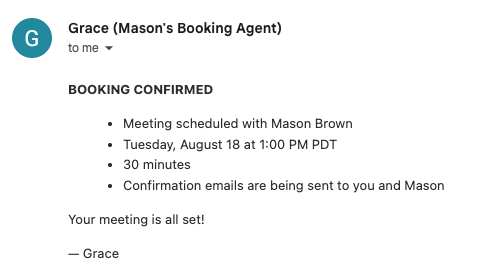
The name and email in this sample email ("Mason Brown", the author's own address) are the post author's own demonstration data, not patient information (no PHI).
Step 7 - Go Live
Publish the Workflow. This gives live members a stable, effective experience while you continue editing the draft.
Optional Enhancements
These aren't in the base workflow but are easy, high-value additions:
- Confirmation emails to both parties. Add two
email:sendrules in the Actions tab for the Book Meeting task (trigger: Calendar, action: Send Email) that send from the Booking Agent inbox - one to the member, one to the host - using the saved record. - Cancellation / rescheduling. Add a second task so members can cancel or move an existing meeting.
- Human handoff. Configure the Escalation ability so the agent can hand a member to a person when it gets stuck.
- Buffer time & business hours. Encode "no meetings before 9 am / after 5 pm" and a gap between meetings directly in the Step-3 slot-generation instructions.
Quick Recap Checklist
- Google Calendar connected (read + write)
- Agent (Grace) created - short identity prompt, fast chat model
- "Booking Agent" inbox created, AI Enabled turned on
- Workflow "Meeting Booking" created, agent = Grace, default inbox = Booking Agent
- Calendar Booking ability attached to the Book Meeting task
- Escalation configured if human handoff is enabled
- Task "Book Meeting" written with the six-step prompt
- Tested by chat, email, and timezone
- Version published
Why I Built This
My father founded Revenue.io, an AI sales enablement platform, so I grew up hearing him talk about where AI was headed long before it showed up in everyday life. Watching him build a company from that technology and navigate it so early on made him a bit of a trailblazer in my eyes. That's a big part of why I wanted to learn to build with AI myself, instead of just hearing about it secondhand.
Now, as a student, I've watched AI reshape how work gets done, taking over repetitive tasks and leaving people more time for higher-value work. That makes me a little nervous. Grace is a perfect example of the tension: she handles the busy work of an assistant, someone who otherwise spends real hours in a week just going back and forth on meeting times.
Building this workflow was my way of doing something about that nervousness instead of just sitting with it. The first version of Grace worked, but it took eight messages to book a single meeting, far too many for something meant to save people time. So I rebuilt the task prompt: Grace now uses the member information already provided to Gravity Rail and combines her remaining questions into one message instead of asking them one at a time. That single change cut out almost all of the back-and-forth.
That's what ultimately shifted how I think about AI. The way to stop being afraid of it taking over is to learn how to build with it. Every hour this workflow saves someone from manual scheduling is an hour they get back. Understanding how that happens, and actually taking action to make it happen, instead of just watching it happen to you, is the whole of this tutorial.