Monday.com Sync
Configure board mappings, sync rules, and automations to keep Monday.com and Gravity Rail in sync.
Monday.com Sync
Once your Monday.com account is connected to Gravity Rail, you can configure how data flows between your Monday boards and your workspace. This guide covers board mappings, sync rules, automations, member linking, and monitoring.
How It Works
Sync is built on three layers:
- Board mappings define which Monday boards connect to which Gravity Rail data — either workspace members or form records.
- Sync rules within each mapping control which columns map to which fields and how values are transformed.
- Automations trigger actions in Gravity Rail (notifications, new conversations) when data arrives from Monday.
Sync runs in one or both directions:
- Outbound (Gravity Rail to Monday) pushes member or form data to Monday items. Useful for writing back data collected by AI agents — call notes, outreach status, screening results — so your Monday board stays current.
- Inbound (Monday to Gravity Rail) pulls Monday item data into member profiles or form records. Useful for keeping Gravity Rail in sync with enrollment data, referral information, or status changes made by your operations team in Monday.
You can start with one direction and add the other later.
Setting Up Board Mappings
Board mappings tell Gravity Rail which Monday boards to sync and how. Each mapping connects one Monday board to either your workspace members or a specific form.
Choosing a Target Type
The target type determines what kind of Gravity Rail data syncs with the Monday board:
| Target | When to use it | Example |
|---|---|---|
| Members | The Monday board tracks people who should exist as workspace members — patients, enrollees, referrals. Each Monday item maps to one member. | An enrollment board where each row is a patient with name, phone, email, and status columns |
| Form / DataType | The Monday board tracks records that should be stored as form data on existing members — assessments, outreach logs, intake forms. Each Monday item maps to one form record. | A voicemail queue board where each row is a call record linked to a patient |
Most teams start with a member-target mapping for their primary enrollment or patient board. Add form-target mappings later for boards that represent activities or records tied to those members.
Adding a Board Mapping
- Go to the Sync tab.
- Click Add Board Mapping.
- Select a Board from the dropdown. This shows all boards accessible to your connected Monday account.
- Choose a Target — Members or Form / DataType.
- Set the Sync Direction:
- Bidirectional — Data flows both ways. Best when both teams actively update the same records.
- Outbound only — Data flows from Gravity Rail to Monday. Best when Gravity Rail collects data (via AI conversations, forms, or workflows) that your operations team needs to see in Monday.
- Inbound only — Data flows from Monday to Gravity Rail. Best when your operations team manages data in Monday and Gravity Rail needs to stay current.
- Click Save Sync Settings.
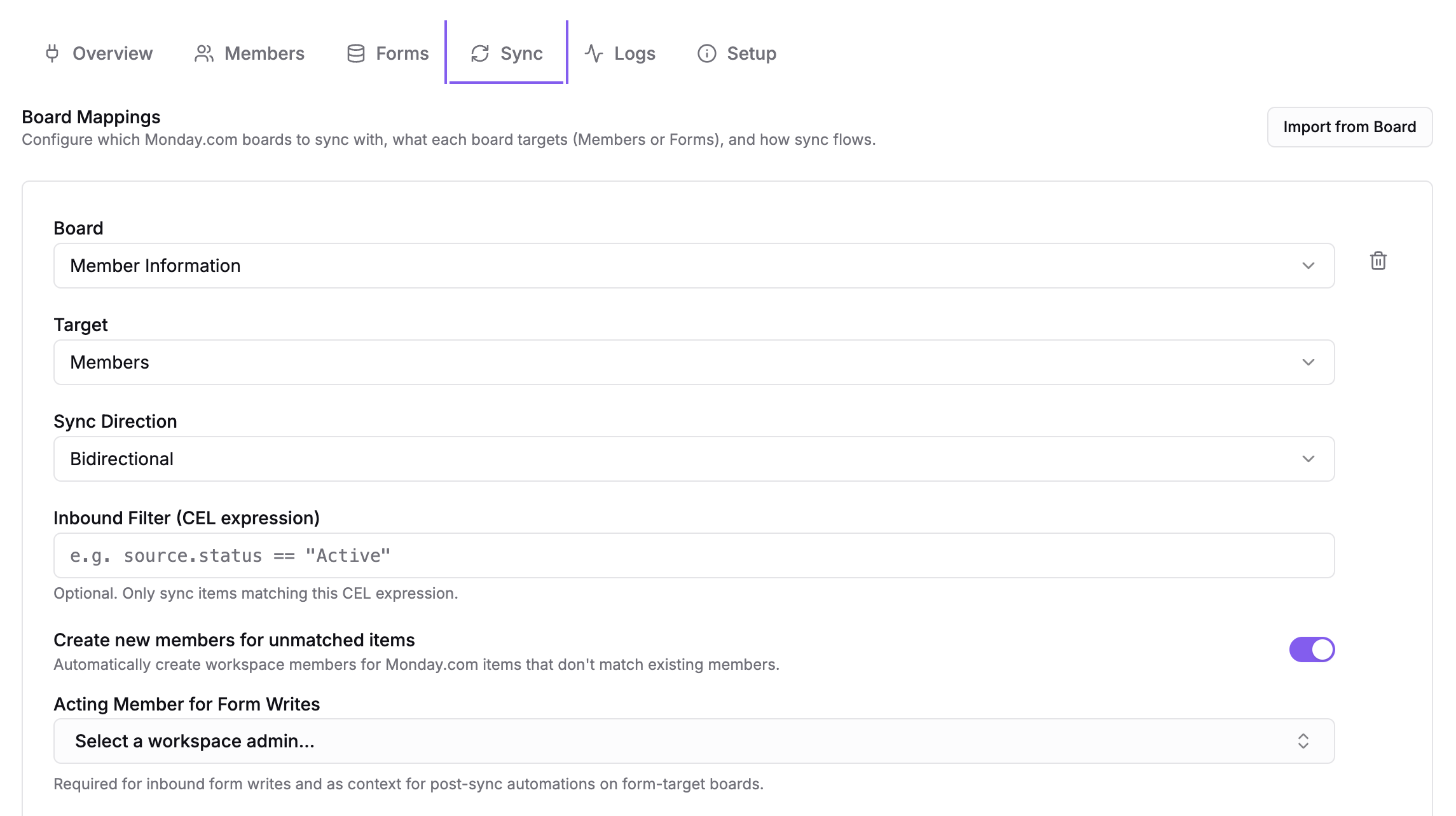
You can add multiple board mappings to sync different boards or to sync the same board to different targets.
Board Mapping Options
Depending on your target type and sync direction, additional options appear:
- Create new members for unmatched items (member targets only) — When enabled, inbound sync creates new workspace members for Monday items that don't match any existing member. Enable this if your Monday board is the authoritative source of new enrollees. Disable it if members should only be created through other channels (voice, SMS, web).
- Inbound Filter — A CEL expression that limits which Monday items are synced inbound. For example,
source.status == "Active"would only sync items with an Active status, ignoring archived or pre-screening records. - Acting Member for Form Writes (required for inbound sync with form targets) — Select a workspace admin whose permissions authorize writing to form records during inbound sync.
Configuring Sync Rules
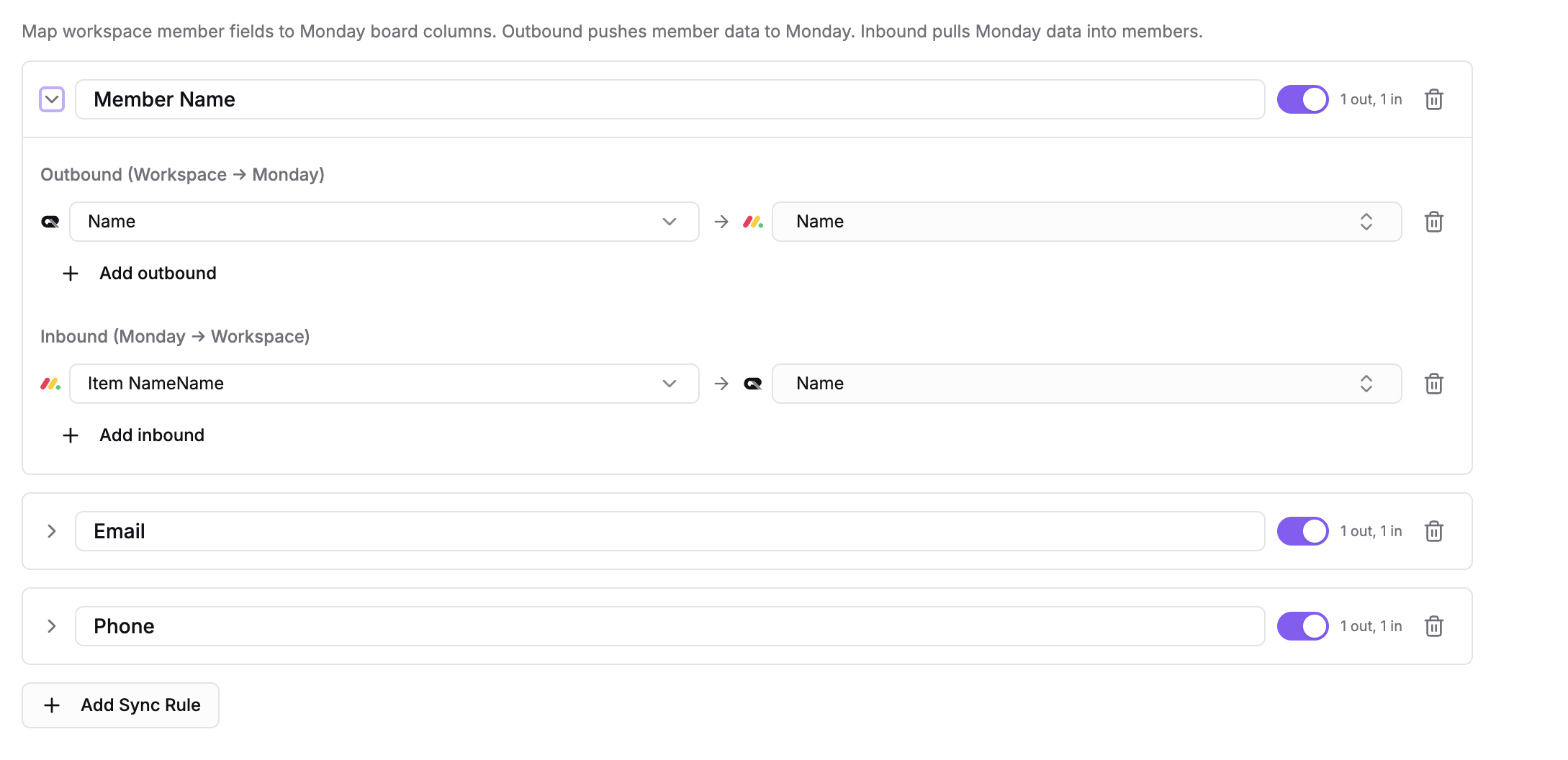
Sync rules define how individual fields map between Monday columns and Gravity Rail. Each rule has a name and contains one or more operations in each direction.
Default Rules
When you add a board mapping targeting members, three default rules are created:
| Rule | Outbound (GR to Monday) | Inbound (Monday to GR) |
|---|---|---|
| Name | Member name to Monday "Name" column | Monday "Name" to member name |
| Member email to Monday email column | Monday email to member email | |
| Phone | Member phone to Monday phone column | Monday phone to member phone |
For form targets, default rules are generated based on the form's fields.
Adding a Sync Rule
- In a board mapping card, find the Sync Rules section.
- Click Add Sync Rule.
- Name the rule descriptively (e.g., "Referral Date" or "Enrollment Status").
- Add outbound operations, inbound operations, or both.
Outbound Operations (Gravity Rail to Monday)
An outbound operation writes data from a Gravity Rail member or form record to a Monday column.
- Source (left side) — Select from member properties, form fields, labels, managed fields, or write a custom CEL expression.
- Monday column (right side) — Search and select the target column. The picker shows each column's name, type, and ID.
For example, a care coordination team might create an outbound rule that writes the member's profile URL to a "Gravity Rail Profile" link column in Monday, giving the operations team one-click access to conversation history and form data.
Status and Dropdown Columns: Label Matching
When an outbound rule writes to a Monday status or dropdown column whose source is a Gravity Rail enum field, Gravity Rail sends the field's display label (e.g. Scheduled) — not the stored value (e.g. scheduled). For Monday to accept the write, the label set on the Gravity Rail option must exactly match the label set on the Monday column.
- Saving a board mapping rejects with an actionable error if any Gravity Rail enum option label is missing from the Monday column's labels. Rename the option in the form editor or the label on the Monday column so they match exactly, then save again.
- Saved mappings that drift later (label renamed in Monday after save) surface as a yellow warning at the top of the Sync tab and fail closed locally on the next sync run with a
MISSING_REMOTE_LABELerror in the Logs tab — Gravity Rail does not call Monday with a value Monday would reject. - Comparison is exact:
Scheduledandscheduledare different labels; trailing whitespace counts. There is no fuzzy match.
Inbound Operations (Monday to Gravity Rail)
An inbound operation writes data from a Monday column to Gravity Rail.
- Monday source (left side) — Select a column or write a custom expression.
- GR field (right side) — Choose where to store the value:
- Core Properties — Name, email, phone, external ID.
- Managed Fields — Custom fields owned by the Monday connection, visible on the member profile.
- Form Fields — Write to a specific field on a form record (requires an acting member to be set).
For example, an enrollment team tracking referral dates and referring organizations in Monday can map those columns to form fields in Gravity Rail, so AI agents have that context when engaging with the member.
Record identifiers belong in real Form fields. If your Form represents a clinical record keyed by an MRN or other upstream identifier, model that identifier as a dedicated Form field (e.g. a
medical_record_numberDataField) — not asDataRecord.external_id. The Form'sexternal_idcolumn exists to idempotently bind one Monday item to one record; using it for MRNs silently collapses to "one record per Form per MRN" and reuses a non-PHI integration column for PHI.
Expressions
Sync rule sources use CEL (Common Expression Language). Most of the time, you'll use the dropdowns and never write CEL directly. But for custom transforms — splitting names, formatting values, conditional logic — select Custom Expression and write your own.
The expression context is the same as described in the HubSpot Sync guide: source.name, source.email, source.phone, source.form_data, source.has_label(), and all available transform presets.
Importing from a Board
If you want to do a one-time import of Monday items into Gravity Rail (rather than ongoing sync), use the import feature. This is useful for initial setup — importing your existing Monday roster as workspace members before enabling ongoing sync.
- On the Sync tab, click Import from Board.
- Select the Board to import from.
- Choose Import As: Members or Form.
- Optionally add a Filter Expression to limit which items are imported.
- Check Dry run to preview what would be imported without making changes.
- Click Preview Import (dry run) or Start Import.
Check the Logs tab for progress and results. Always run a dry run first on large boards.
Post-Sync Automations
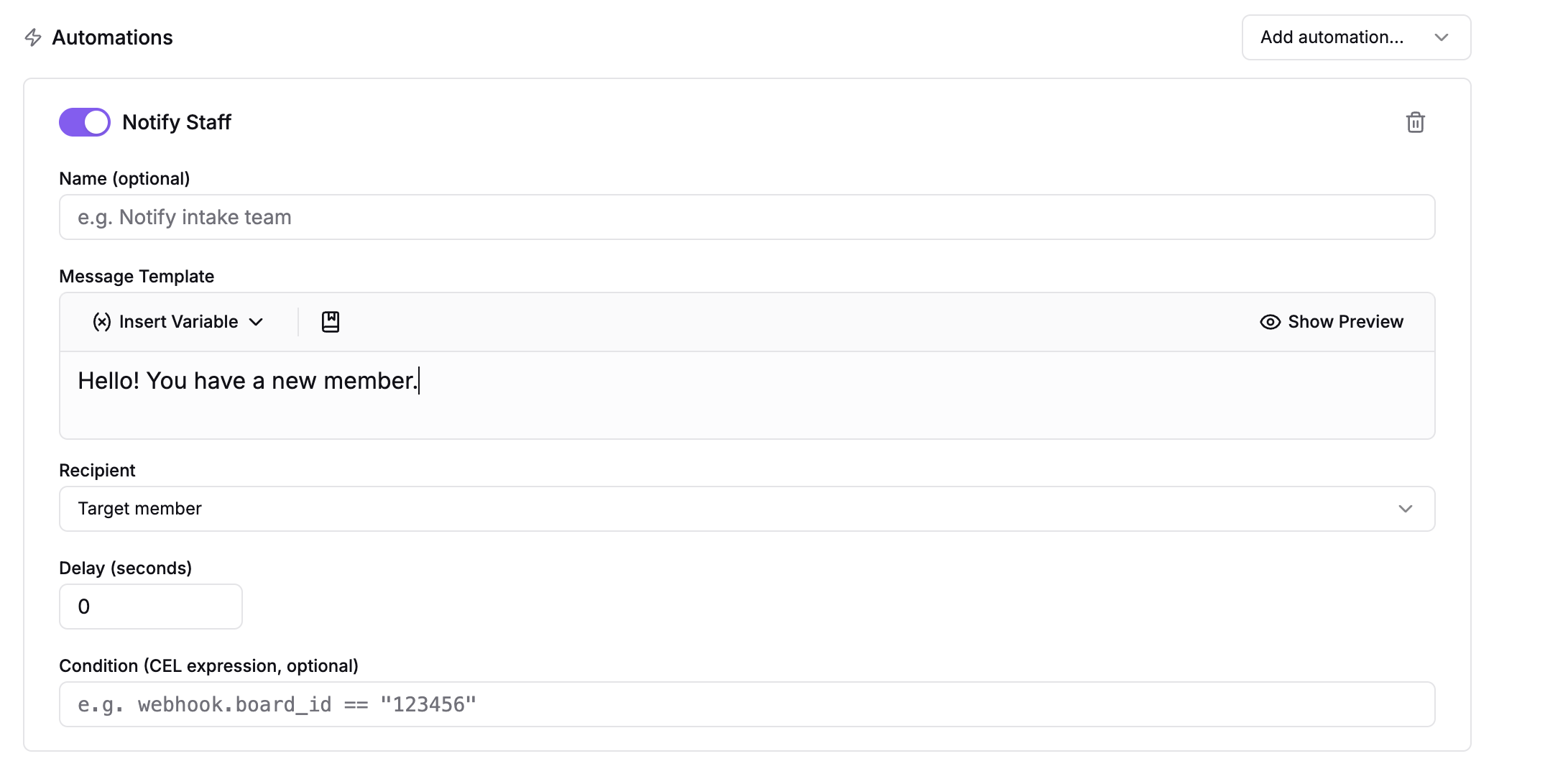
Board mappings support automations that trigger after an inbound sync completes. These bridge the gap between data arriving from Monday and action happening in Gravity Rail.
To add an automation:
- Expand a board mapping on the Sync tab.
- Find the Automations section and click Add automation.
- Choose an action:
- Notify Staff — Send a notification when an item syncs. Configure the message template, recipient (target member, acting member, or a specific person), and optional delay. Useful for alerting a care coordinator when a new referral arrives from Monday.
- Create Chat — Start a conversation in a workflow when an item syncs. Select the workflow, channel (SMS, Phone Call, or Web Chat), and optional initial message. Useful for automatically kicking off an enrollment outreach when a new patient appears in Monday.
- Optionally add a Condition (CEL expression) to limit when the automation fires.
Linking Members to Monday Items
The Members tab shows which workspace members are linked to Monday items. Links are created automatically during sync, but you can also manage them manually.

Finding Matches
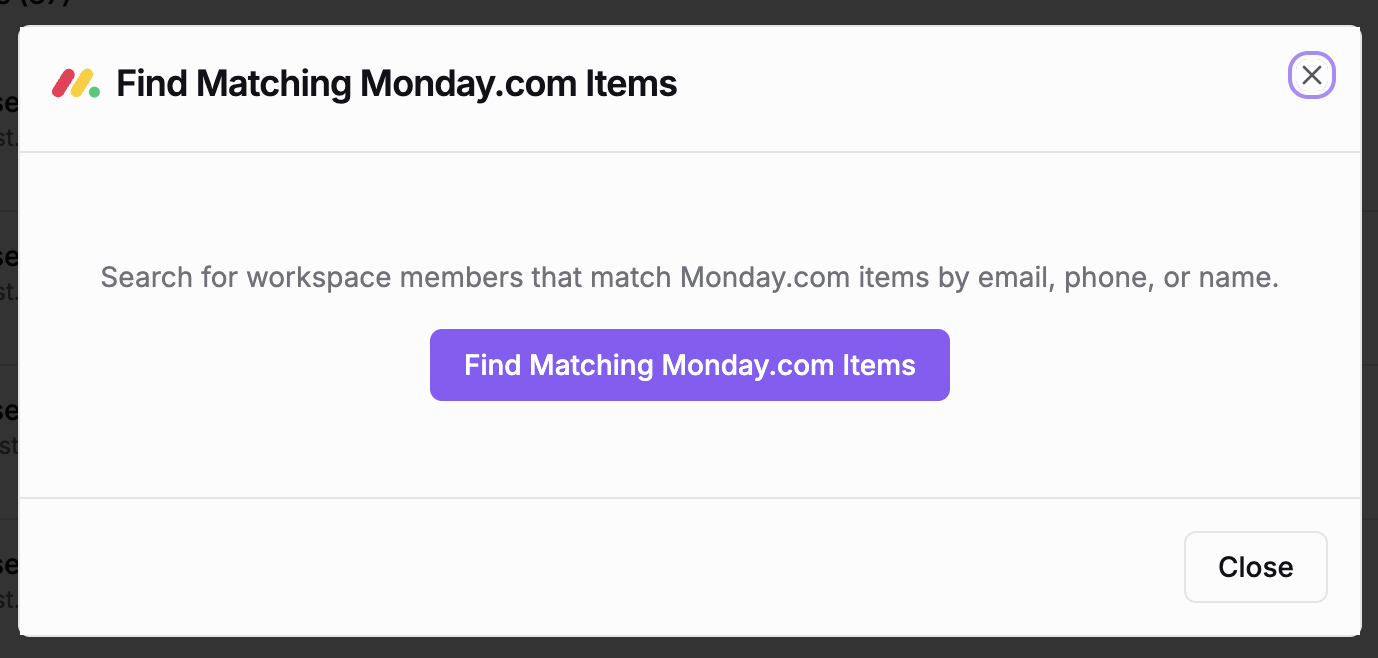
If you have existing members in Gravity Rail and existing items in Monday that represent the same people, use the matching tool to link them:
- Go to the Members tab.
- Click Find Matching Records.
- Gravity Rail searches your Monday boards for items that match existing members by email, phone, or name.
- Review the matches and click Link on individual matches, or Link All to link them all at once.
This is especially useful when connecting Monday to a workspace that already has members from other channels (SMS, voice, web).
Unlinking
To remove a link between a member and a Monday item, click Unlink next to the member on the Members tab. This doesn't delete the member or the Monday item — it just removes the association so they won't sync.
Viewing Sync Logs
The Logs tab shows sync activity. You'll see:
- Live progress during an active sync, with counts for synced, failed, and skipped items.
- Per-item status showing which members or records succeeded or failed.
- Error details — click a failed item to see the specific error message.
- Sync history — a list of past sync runs with timestamps and status.
Test on Small Batch
When configuring a new board or changing rules, full syncs can take a long time and touch thousands of records. The Test on small batch button next to each entity-type's sync controls runs a capped dry-run preview:
- Default sample size: 20 records. Adjust with the number input next to the button (1–200).
- Always a dry run: writes are not persisted, regardless of whether Full resync is checked.
- Doesn't move the checkpoint: the sync's resume position is unchanged, so the next real sync still picks up where it left off.
Use it to validate field mappings, filters, or a new match strategy on a small slice before committing to a full sync. The Logs tab shows the same per-item status as a normal run, so you can spot mapping or compatibility issues without waiting for thousands of records to process.
Troubleshooting
Inbound Sync Not Receiving Updates
Inbound sync requires a Signing Secret to verify webhooks from Monday.com. Go to the Setup tab or click Edit to add the signing secret.
Items Not Matching Existing Members
By default, inbound sync matches Monday items to existing members by email. If your Monday board doesn't have email data, items won't match and will be skipped (or created as new members if "Create new members for unmatched items" is enabled). Check that your sync rules include an inbound email mapping.
If you need to match on a stable identifier that isn't email, open the board mapping's Member Match Strategy dropdown and choose Match by custom field. Two pickers appear:
- Match On (Local field) — A grouped combobox with two sections:
- Properties — A Member built-in column:
Name,Email,Phone, orDescription. - Custom fields — A connection-managed
MemberFieldkey. These are keys this Monday connection has already written to members (e.g. via amanaged_fieldinbound rule on another board). You can also choose Add custom field key… and type a new key string — the matcher will resolve members whoseMemberField(service_id=<this Monday connection>, key=<your key>, value=<column value>)row matches.
- Properties — A Member built-in column:
- Match Column (Monday) — Which Monday column carries the remote value. Select any real column on the board.
The intended flow for multi-board workflows is:
- Board A writes a stable identifier (for example an MRN) to a service-managed Member field — add an inbound rule with target type Managed Field, key
medical_record_number(or your chosen key), source the MRN column. - Board B matches on that same key — pick Match by custom field, select
medical_record_numberfrom the Custom fields group (or add it if it isn't there yet), and pick the Monday column that carries the same value.
Every board scoped to this Monday connection can match on the same key without overloading Gravity Rail's Member.external_id column.
If multiple Members share the same key+value pair the inbound item is skipped with "Multiple members matched the selected custom field key" in the run-item detail — the raw value is never logged. Resolve by archiving the duplicate Member or by narrowing the key.
Form Field Writes Failing
Inbound rules targeting form fields require an Acting Member to be set on the board mapping. This must be a workspace admin. Check the board mapping configuration on the Sync tab.
Monday Column Types
Not all Monday column types are supported for sync. The column picker shows which columns are available. If a column doesn't appear, its type may not yet be compatible with the sync framework.
Outbound Sync Not Updating Monday
Check the Logs tab for errors. Common causes include expired OAuth tokens (reconnect via the Overview tab), column type mismatches (e.g., writing text to a date column), or missing board permissions on the Monday.com app.
Save Rejected: "form option label(s) ... are not present on the Monday status column"
The save-time validator enforces that every Gravity Rail enum option label exists exactly on the Monday status or dropdown column it maps to. If the labels diverge (e.g. the form has In Progress but the Monday column only has In progress), saving the mapping returns an HTTP 400 with the offending labels listed.
To fix: open the form editor for the Gravity Rail field, rename the option's label to match the Monday column exactly, save the form, then save the sync mapping again. Alternatively, rename the Monday column label to match Gravity Rail. Stored values (option values) are unaffected — only display labels need to match.
"Sync configuration warnings" Banner
A yellow banner at the top of the Sync tab listing label mismatches means a saved mapping has drifted: the Gravity Rail form labels and the Monday column labels no longer agree. The next outbound sync for those rows will fail closed with MISSING_REMOTE_LABEL (visible in the Logs tab) until the labels are realigned.
Save Warning: "N formula columns are referenced by inbound rules"
If one board mapping's inbound rules reference more than five distinct formula columns, the save returns a non-blocking warning (the save still succeeds) noting the count and the limit. Monday's FormulaValue.display_value API caps reads at five formula columns per request, so a mapping that references six or more will see some formula values return empty at sync time without an error from Monday.
To resolve: split the mapping across multiple boards if possible, drop formula references you don't actually consume downstream, or precompute the formula in Monday into a non-formula column (text/number) and reference that column instead. The warning is informational — Gravity Rail will not block the save, but you should expect partial values on items where all six+ formula columns are touched together.
Tips
- Start with one board and one direction. Get a single board mapping working before adding more. If you're migrating from an existing integration, start with inbound to verify field mappings before enabling outbound.
- Use the dry run import to preview before committing. This is especially useful for large boards or when you're unsure about column type compatibility.
- Check the Logs tab after your first sync to catch mapping issues early. Most errors come from column type mismatches or missing fields.
- Name your rules after the data they carry. With many columns on a Monday board, descriptive rule names ("Referral Date," "Enrollment Status," "Caregiver Phone") make configuration much easier to review and maintain.
- Use filters to limit scope. If your Monday board has test rows, archived items, or records in early stages that shouldn't sync yet, add an inbound or outbound filter to keep your workspace clean.
Related
- Monday.com Setup — Create a Monday.com app and connect it to Gravity Rail
- App Connections — Overview of all available connections
- HubSpot Sync — Detailed guide on sync rules, CEL expressions, and filters (same concepts apply to Monday.com)
- Members — Managing member profiles and data
- Forms — Structured data collection used in sync rules
Related Resources
Monday.com Setup
Create a Monday.com app and connect it to your Gravity Rail workspace via OAuth.
HubSpot Sync
Keep your Gravity Rail members and HubSpot contacts in sync with bidirectional field mapping, flexible transforms, and real-time progress tracking.
App Connections
Connect external services like HubSpot, Salesforce, Monday.com, FHIR EHRs, Slack, Discord, and MCP servers to sync data and extend your workspace.
All Guides
Browse all available guides