Monday.com Setup
Create a Monday.com app and connect it to your Gravity Rail workspace via OAuth.
Monday.com Setup
Monday.com is a common system of record for care coordination teams — tracking enrollments, referrals, outreach status, and patient demographics. The Monday.com App Connection lets you sync that data with Gravity Rail so your AI workflows, forms, and member profiles stay current without manual updates.
This guide covers creating a Monday.com app and connecting it to Gravity Rail. Once connected, see Monday.com Sync to configure board mappings and sync rules.
How It Works
The Monday.com connection uses OAuth to link your Monday account to your Gravity Rail workspace. You create a Monday.com app in your account's Developer Center, enter its credentials in Gravity Rail, and authorize the connection. Once authorized, Gravity Rail can read your boards and items, create and update items, and subscribe to board change events via webhooks.
Each Gravity Rail workspace needs its own Monday.com app — even if multiple workspaces connect to the same Monday.com account. This ensures each workspace has its own permissions and callback URL.
Before You Start
You'll need:
- A Monday.com account with admin access to the boards you want to sync.
- Workspace admin permissions in Gravity Rail.
Step 1: Create a Monday.com App
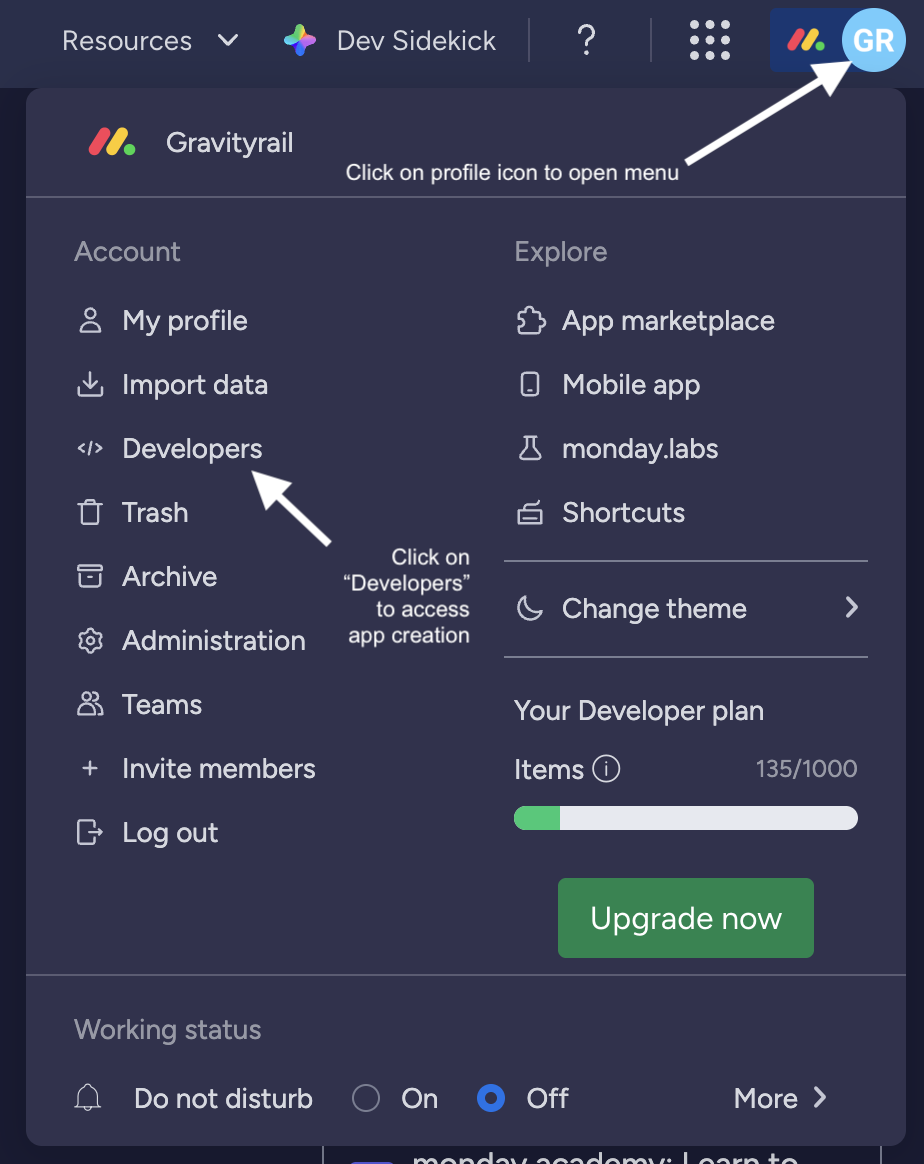
- Open your Monday.com account and click your profile picture in the top right corner.
- Select Developers. The Developer Center opens in a new tab.
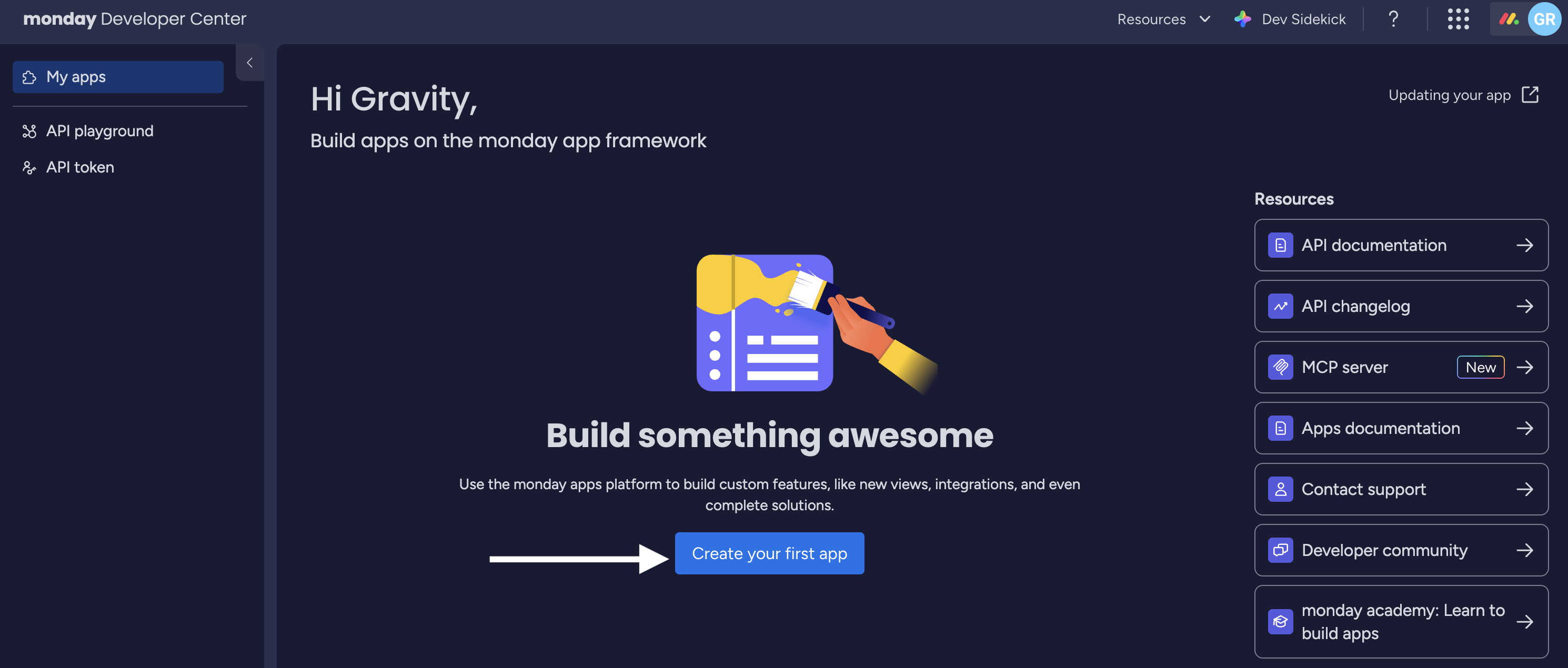
- Click Create your first app (or Create app if you already have apps).
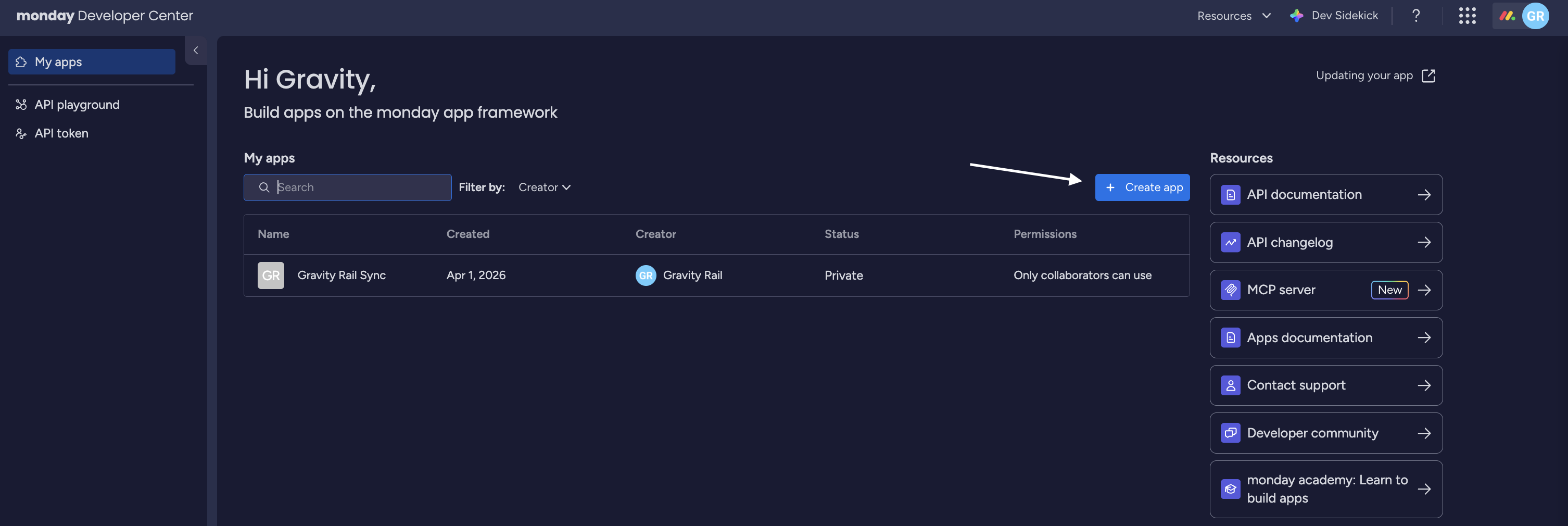
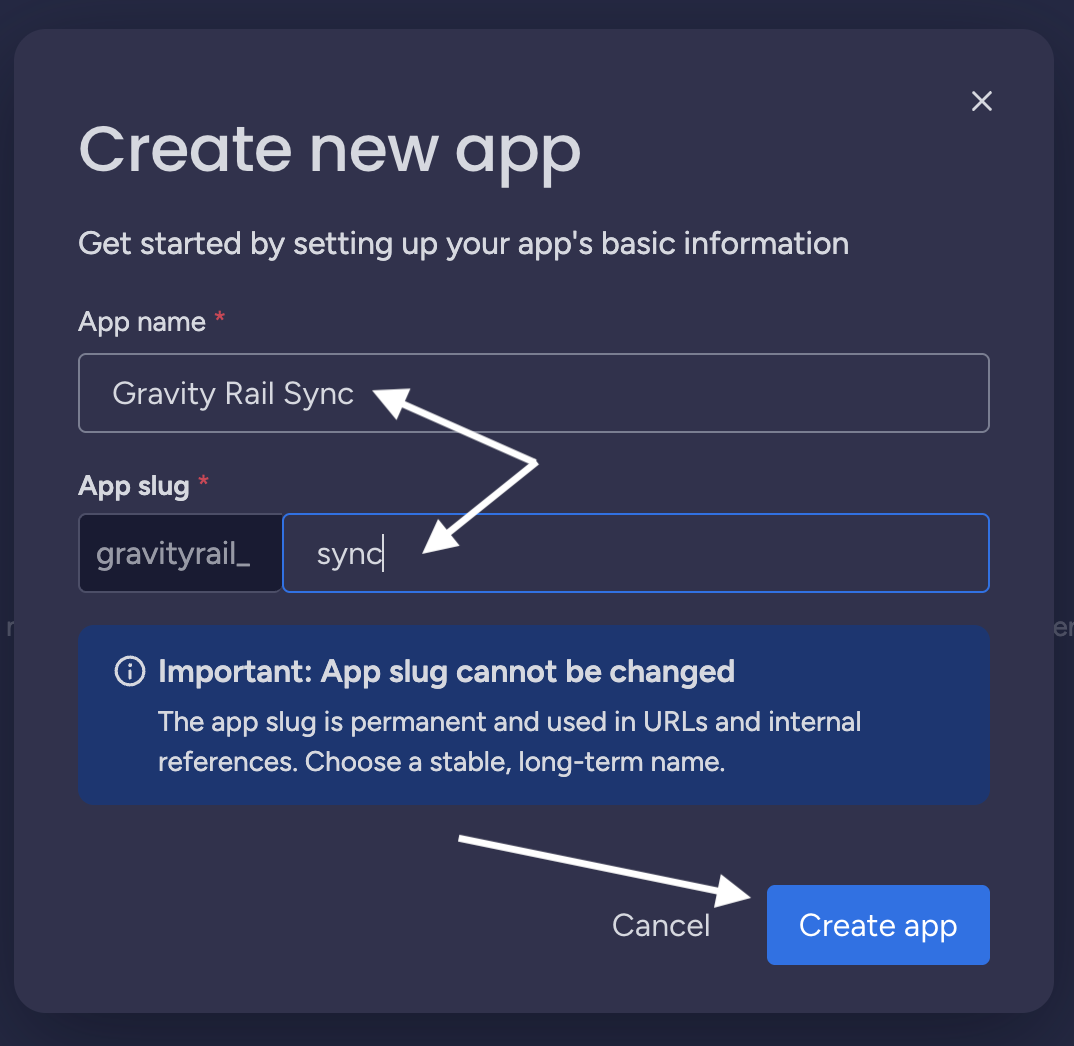
- Enter an App name (e.g., "Gravity Rail Sync") and an App slug (e.g., "gravityrail-sync"). The app slug is permanent and cannot be changed later — choose a stable, descriptive identifier. Click Create app.
- In the left menu, go to General Settings. Under App Credentials, copy the Client ID, Client Secret, and Signing Secret — you'll need these in the next step.
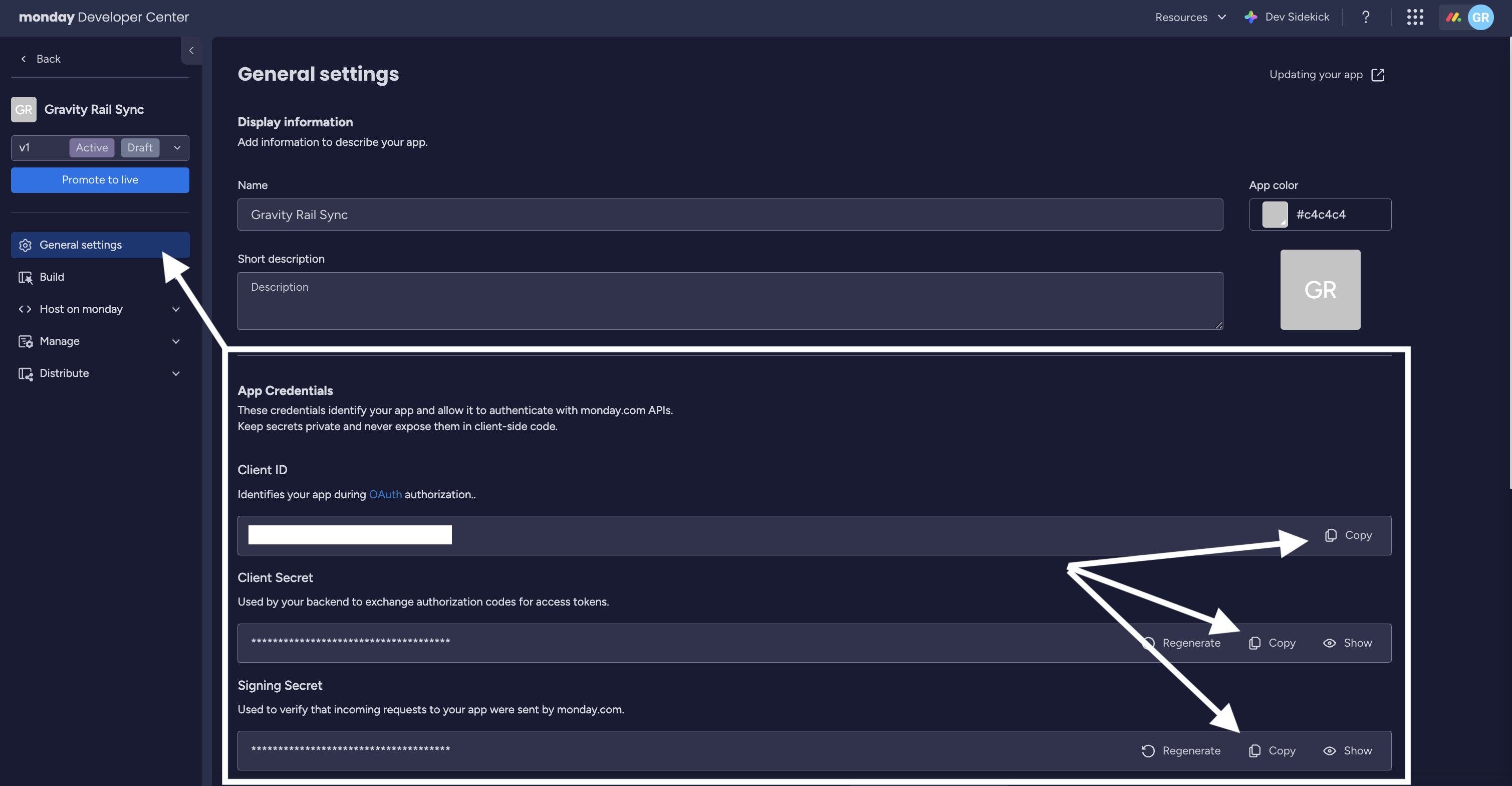
For more details on the Developer Center, see Monday's documentation.
Step 2: Enter Credentials in Gravity Rail
- In your Gravity Rail workspace, go to Developer > App Connections.
- Find Monday.com in the list of available connections and click Install.
- Enter the Client ID, Client Secret, and Signing Secret from your Monday.com app.
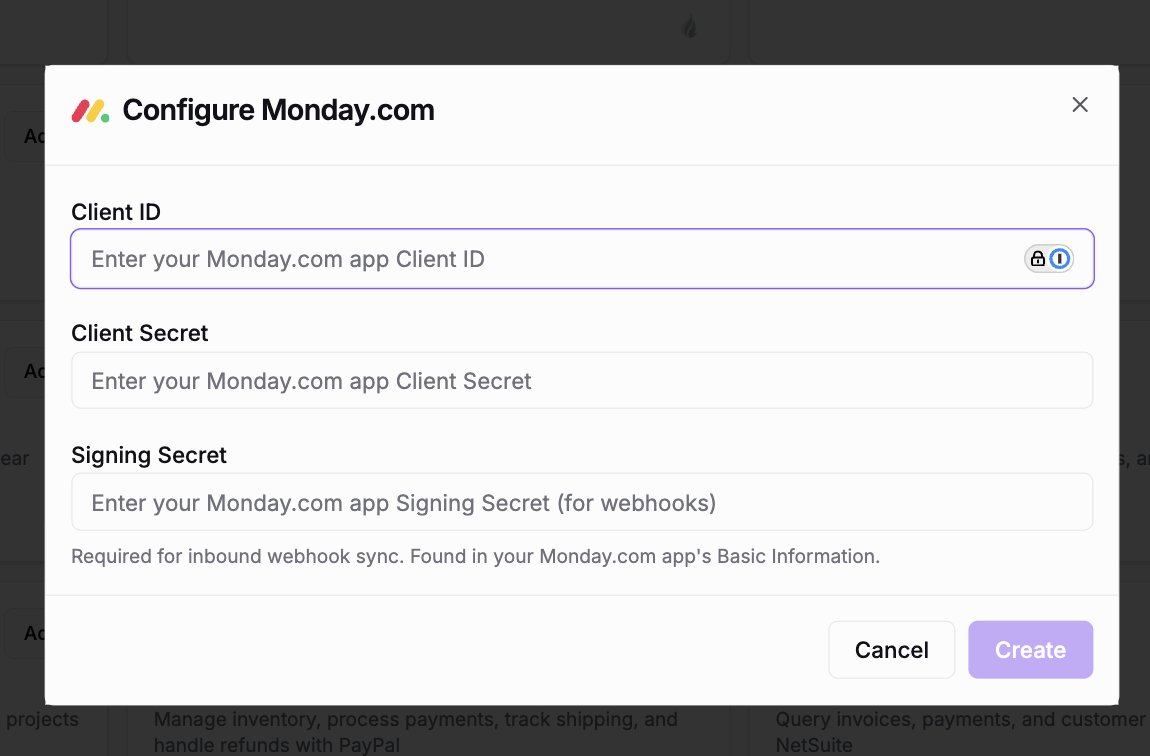
- Click Create. The Monday.com connection page opens with an "Awaiting OAuth" status.
- On the Overview tab, expand Setup Details and copy the OAuth Callback URL — you'll need to add it to your Monday.com app.
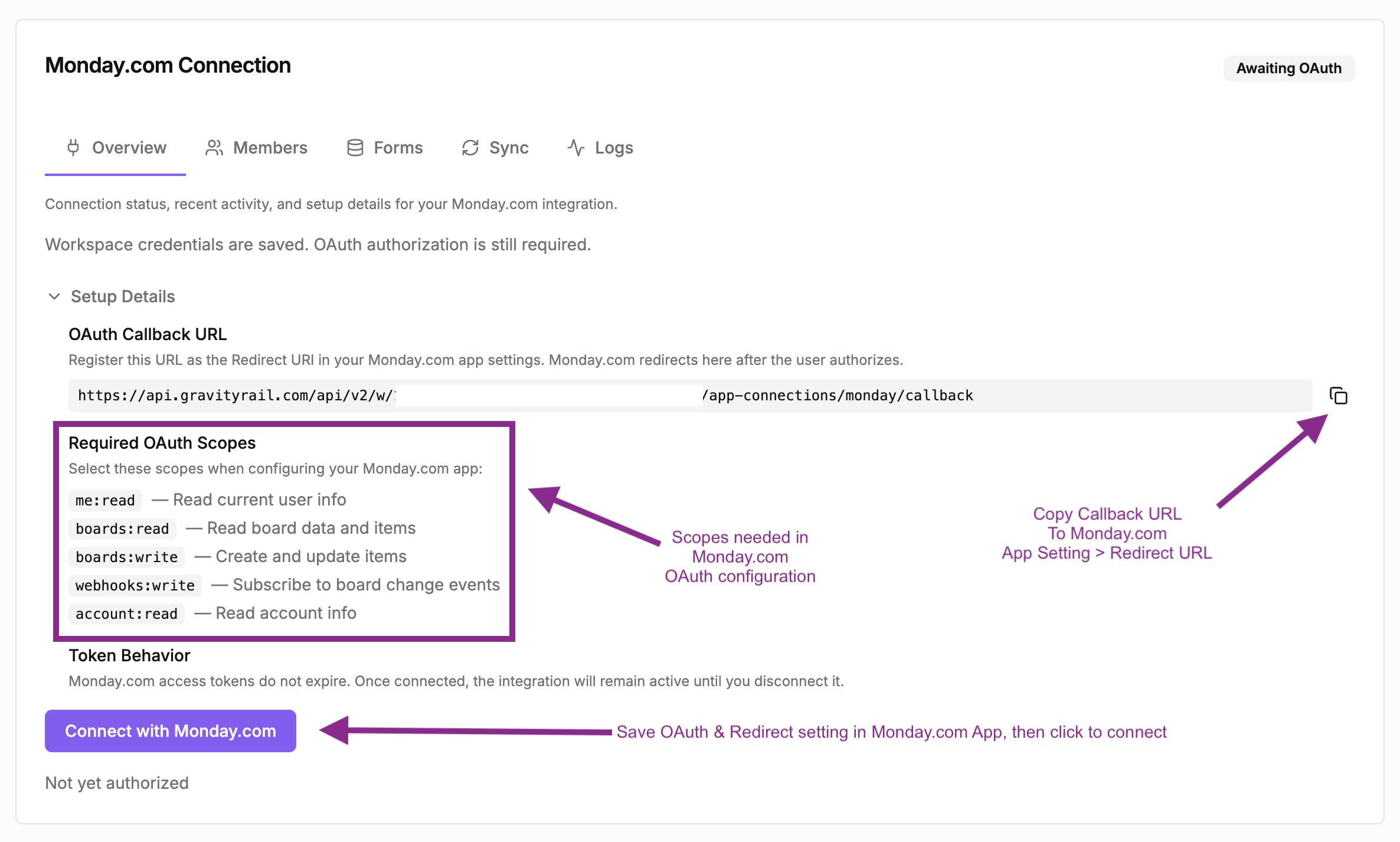
Step 3: Configure OAuth in Monday.com
- Back in the Monday.com Developer Center, go to Build > OAuth & Permissions.
- Select the Redirect URLs tab and paste the OAuth Callback URL from Gravity Rail.
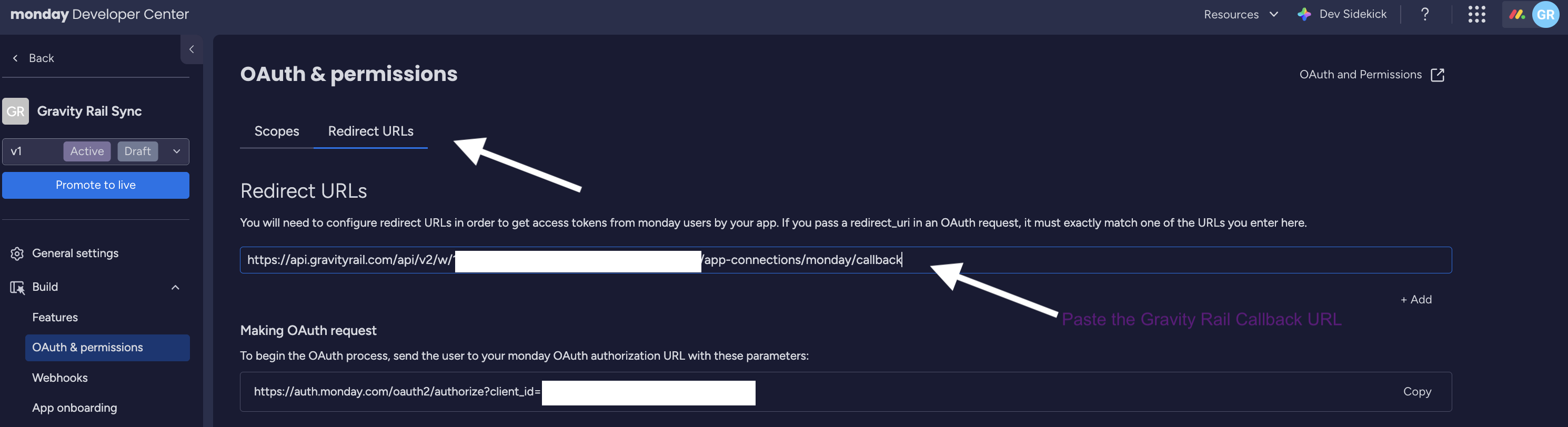
-
Select the Scopes tab and enable the following scopes:
boards:readboards:writeme:readupdates:writewebhooks:readwebhooks:write
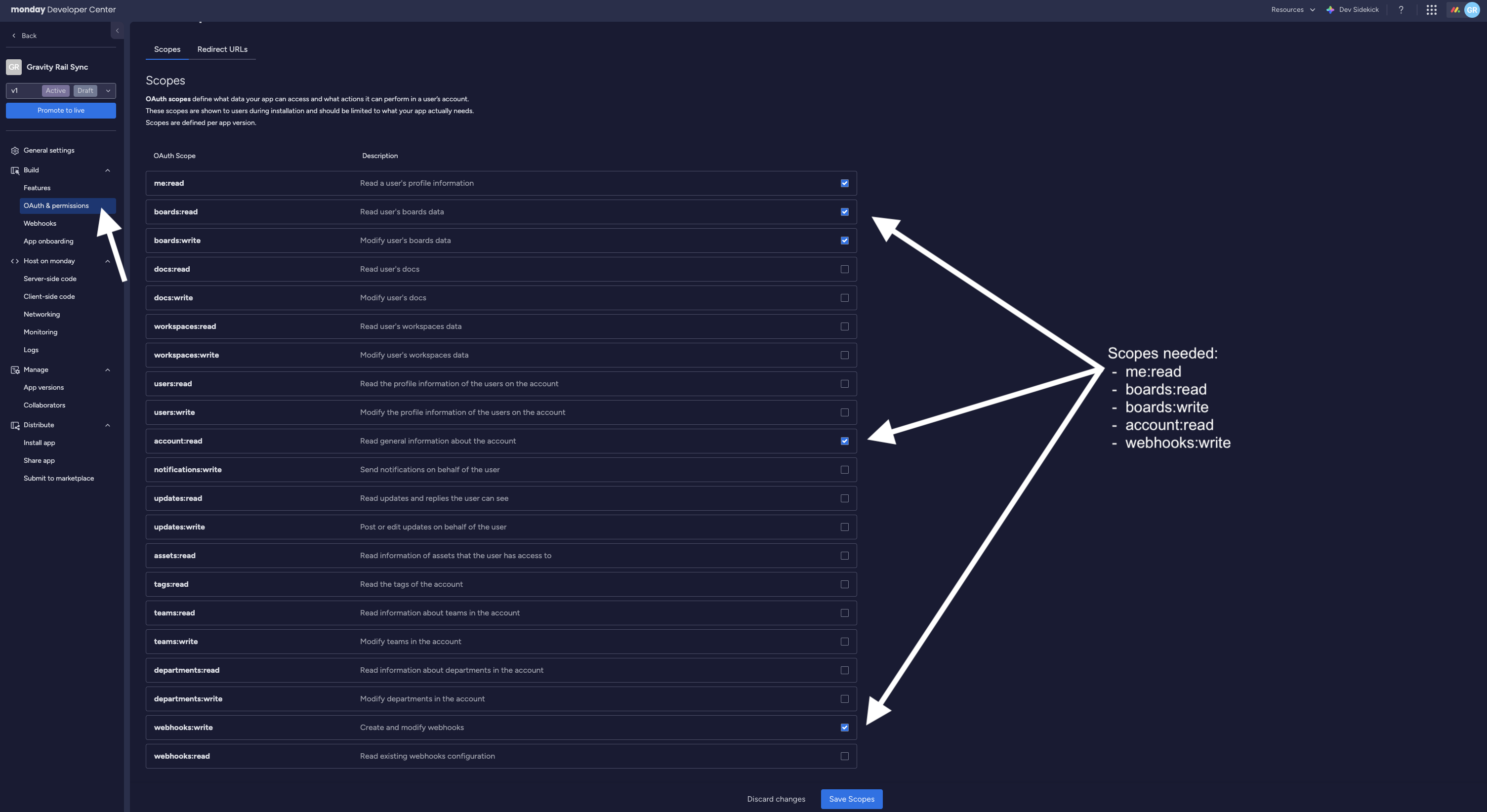
- Click Save changes.
Step 4: Connect
- Back in Gravity Rail, go to the Overview tab on the Monday.com connection page.
- Click Connect with Monday.com.
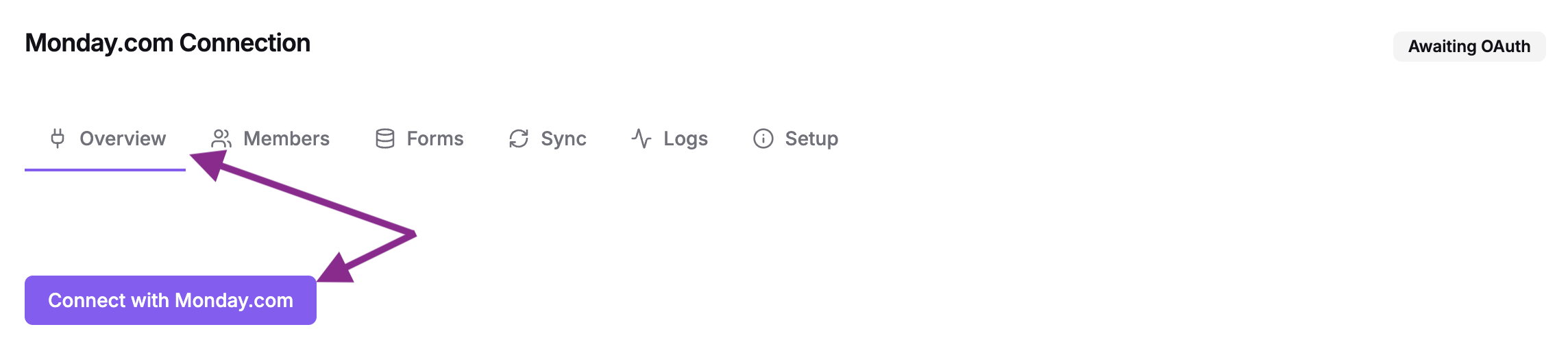
- You'll be redirected to Monday.com to authorize the app. Review the permissions and click Authorize.
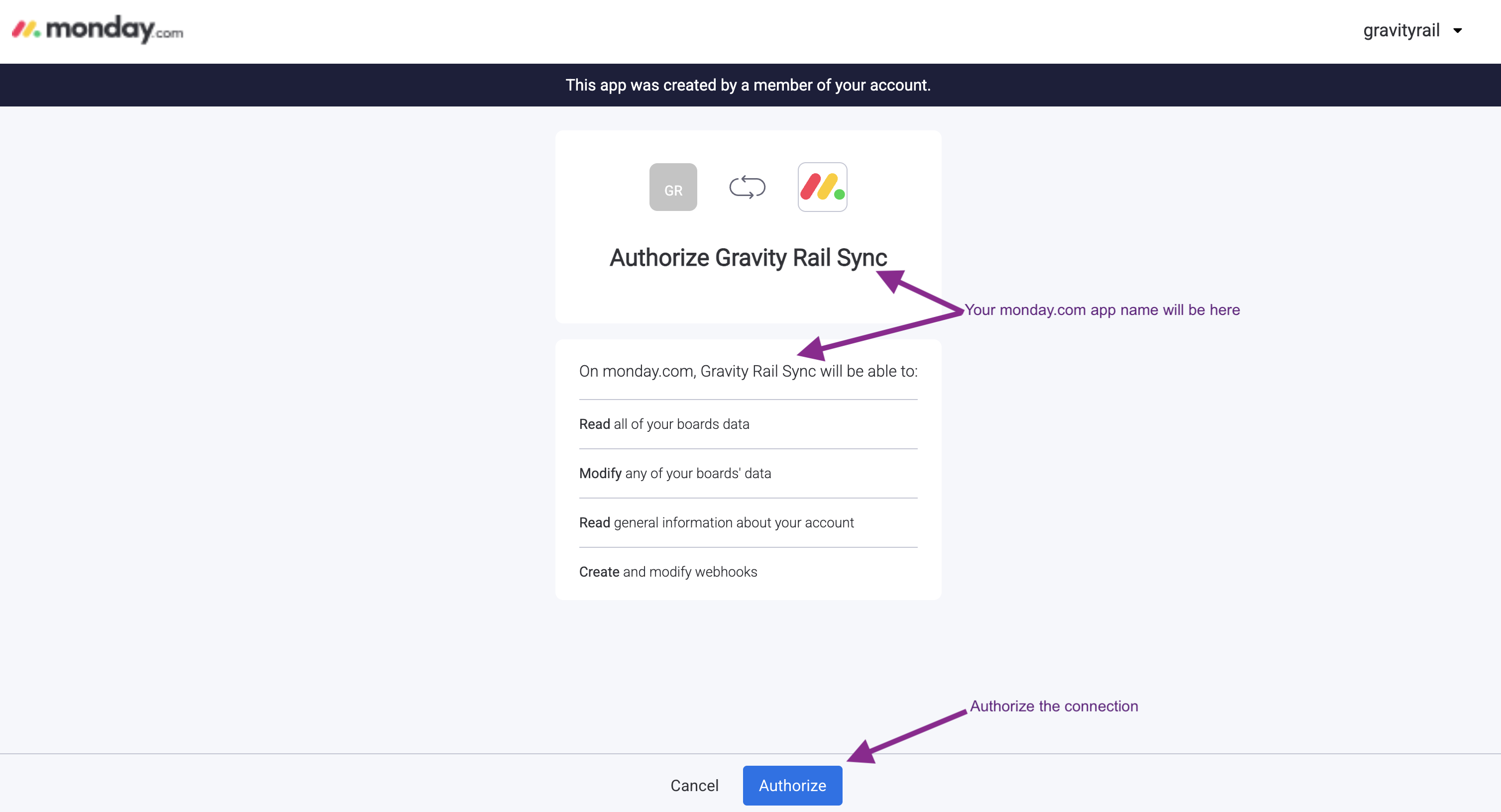
- You'll be redirected back to Gravity Rail.
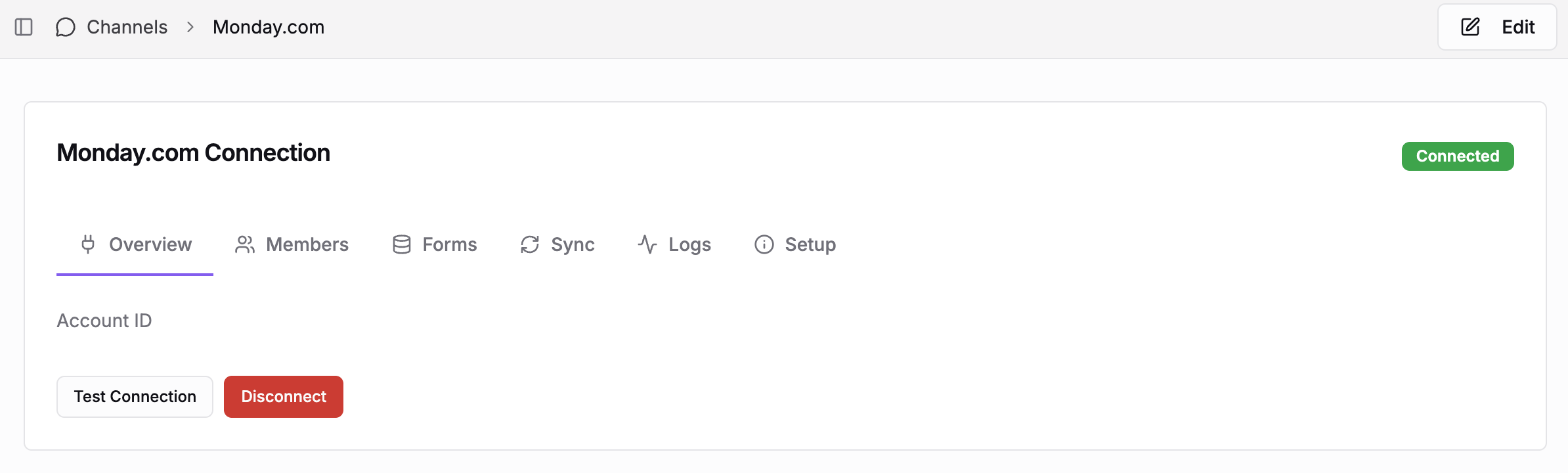
Once connected, you'll see a green "Connected" badge under Developer > App Connections > Active.

The Monday.com Connection Page
After connecting, you'll see six tabs:
| Tab | Purpose |
|---|---|
| Overview | Connection status, account info, authorization attribution, test/disconnect buttons, and collapsible setup details |
| Members | View and manage links between Gravity Rail members and Monday items |
| Forms | View form records linked to Monday items |
| Sync | Configure board mappings and sync rules |
| Logs | View sync activity, progress, and errors |
What Permissions Does Gravity Rail Request?
| Scope | What it allows |
|---|---|
me:read | Read your user profile information |
boards:read | Read board data and items |
boards:write | Create and update items |
account:read | Read account info |
webhooks:write | Subscribe to board change events (for inbound sync) |
Monday.com access tokens do not expire. Once connected, the integration stays active until you disconnect it.
Troubleshooting
"Connect with Monday.com" Button Does Nothing
Make sure you've entered the Client ID and Client Secret in the configuration dialog first. Click the Edit button in the header to update credentials.
OAuth Redirect Fails
Check that the OAuth Callback URL in your Monday.com app's Build > OAuth & Permissions > Redirect URLs exactly matches the URL shown in the Setup Details section on the Gravity Rail Overview page. Even a trailing slash difference will cause the redirect to fail.
"Awaiting OAuth" Status Won't Change
After clicking Authorize in Monday.com, you should be redirected back to Gravity Rail and the status should change to "Connected." If it stays on "Awaiting OAuth," verify that all five scopes are enabled in your Monday.com app and that the redirect URL is correct.
Connection Shows Error State
Click Test Connection on the Overview tab to diagnose. If the token is invalid, click Disconnect and repeat the OAuth flow from Step 4. You won't need to re-enter credentials or reconfigure the Monday.com app.
Tips
- Copy credentials carefully. Use the copy buttons in the Monday.com Developer Center rather than selecting text manually. A missing character in the Client Secret will cause a cryptic OAuth error.
- Test the connection immediately. After completing Step 4, click Test Connection on the Overview tab before moving on to sync configuration.
- Bookmark your Developer Center app. You'll return to it if you need to update scopes or check the signing secret.
Next Steps
Now that your Monday.com account is connected, see Monday.com Sync to configure board mappings, sync rules, and automations.
Related
- Monday.com Sync — Configure board mappings, sync rules, and automations
- App Connections — Overview of all available connections
- HubSpot Sync — Sync rules, CEL expressions, and filters (same concepts apply to Monday.com)
Related Resources
Monday.com Sync
Configure board mappings, sync rules, and automations to keep Monday.com and Gravity Rail in sync.
Getting Started
Get your workspace set up and start building automated workflows with AI assistance.
Connect to Your EHR — Build an MCP Server
Integrate your AI workflows with Epic, Cerner, or other EHR systems by building and connecting an MCP server.
All Guides
Browse all available guides